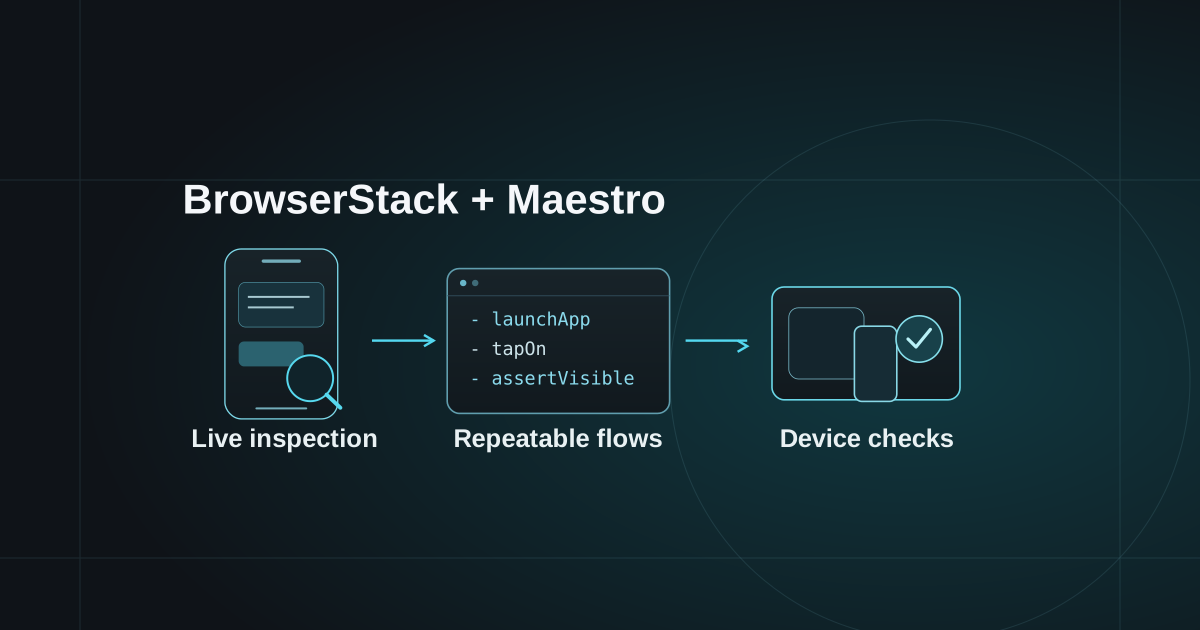
A mobile release can pass a local smoke test and still leave a user stuck behind a keyboard, a permission prompt or an unclear loading state. A useful test workflow combines hands-on exploration with repeatable checks of the journeys that matter.
BrowserStack provides environments for interactive and automated testing. Maestro describes mobile journeys as readable YAML flows. Together, they can help a team move from a reproducible device issue to a regression check, with evidence tied to a particular build.
Choose the BrowserStack product for the job
The product names describe different kinds of testing:
- BrowserStack Live provides interactive cross-browser testing for websites and web applications.
- BrowserStack App Live provides interactive testing of mobile applications on real Android and iOS devices.
- BrowserStack Automate runs browser automation, while App Automate runs supported mobile app automation frameworks.
Use Live when investigating a mobile website. Use App Live when inspecting an installed app. For a repeatable native-app journey written in Maestro, review BrowserStack's App Automate integration. It currently documents Maestro execution on real Android and iOS devices, with test results and debugging artifacts.
Device availability, supported commands and framework versions belong to the selected platform configuration. Check those details before committing a release matrix or assuming a local flow will run unchanged.
Start with an App Live investigation
Upload the build you intend to evaluate, then choose a device and OS relevant to your users. BrowserStack's App Live getting-started guide explains how to upload an app and begin a device session.
For a support or chat interface, explore a small sequence: open the conversation, focus the composer, enter a long message, dismiss the keyboard and return from another screen. Check whether the send control remains reachable, the transcript stays readable and the draft survives the transitions your product promises to support.
Record the build identifier, device, OS, account state and reproduction steps. Capture the visible problem and its expected behavior. A report such as “the keyboard covers Send on this screen” gives an engineer a concrete starting point. “Mobile feels broken” leaves too many variables unresolved.
Use a dedicated test environment with synthetic conversations and approved test accounts. A successful exploratory session is evidence for the paths inspected; additional devices and failure states still need coverage.
Turn a known journey into a Maestro flow
The Maestro CLI runs user journeys defined in YAML. Keep the first flow small enough that its failure identifies a meaningful product problem.
This illustrative flow checks an approval boundary in a fictional assistant app. It assumes a test build that opens directly into a seeded workspace, exposes the listed element IDs and uses a deterministic response fixture. Replace the application ID and selectors with your own. The example has not been executed against a real application.
appId: com.example.assistant
---
- launchApp
- assertVisible:
    id: "workspace_ready"
- tapOn:
    id: "create_reply_draft"
- extendedWaitUntil:
    visible:
      id: "reply_draft_ready"
    timeout: 15000
- assertVisible:
    id: "review_required"
- assertNotVisible:
    id: "reply_sent"
The important assertion is that a generated draft waits for review. A test that only taps a button and reaches another screen would miss an accidental send.
Prefer stable element IDs or specific visible labels over screen coordinates. Maestro's tapOn documentation explains these selectors. assertVisible retries while waiting for an element; extendedWaitUntil lets a flow wait for a named state within an explicit timeout.
An element appearing confirms a UI condition. Verify server-side effects separately when the acceptance criterion includes a saved record, a sent message or a completed job. A visible status label alone cannot prove those effects.
Add real-device automation to CI
First make the flow reproducible locally with a known build and resettable fixtures. Then select the execution environment.
Maestro Cloud documents managed execution on virtual devices. BrowserStack's Maestro integration documents real Android and iOS devices through App Automate. Record which environment produced each result so a simulator run is not presented as physical-device evidence.
BrowserStack's execution guide requires an account's username and access key, the Android APK or iOS IPA, and a zipped Maestro test suite. The guide describes uploading the app and suite, selecting supported devices and starting a build through its API. Specify the flows to run explicitly with the documented execute option. Keep credentials in the CI provider's secret store, and review supported versions and commands before configuring the job.
A practical pipeline can run a short smoke suite for each candidate build and a broader agreed device matrix before release. Attach the commit, app build, flow version and device configuration to the results. Treat a failed run as something to investigate; repeated retries should not silently turn a recurring failure into a green release.
Test AI behavior at two levels
For agentic systems and automation, separate interface behavior from model quality.
Use deterministic fixtures to check the application contract: loading, cancellation, timeout, empty results, failed tools, permission boundaries and human handover. For a voice assistant, cover microphone permission being denied and a conversation being interrupted. For image generation, cover pending, failed and review-required states. These tests should have predictable outcomes even when the production model changes.
Evaluate model behavior separately with representative prompts and an agreed review rubric. A reply can appear in the correct UI and still be inaccurate or unsuitable. Track the prompt, model configuration and evaluation data with that evidence. Avoid making every UI regression test depend on the exact wording of a live model response.
The same principle applies to call-centre and chat workflows: verify that the system asks for approval where required, handles a failed action and offers a usable handover. Keep test calls, messages and generated content inside approved test channels.
Keep a focused release checklist
For each critical journey, agree on:
- The supported device and OS combinations, plus the exact candidate build.
- Starting state, synthetic fixtures and a repeatable cleanup process.
- Observable success, failure and recovery states.
- Required evidence, including screenshots or video and relevant test logs.
- Checks outside UI automation, such as accessibility review, backend effects and performance measurement.
Maestro's web-browser support is currently documented as Chromium-only beta. A mobile-web browser matrix needs its own supported browser tooling and configuration. Similarly, a passing UI flow does not establish frame rate, accessibility compliance or the quality of an AI answer.
For a mobile delivery project, begin with the journeys your users depend on and the devices they actually use. Skynor can scope a QA and security review around those acceptance criteria, then agree which checks to automate and which need direct inspection.
Platform details checked against official documentation on 12 October 2026. Consult the linked documentation when selecting versions and devices for your project.